

Multimedia Content
 This page discusses what is needed to make the content of the multimedia accessible. If you are looking for an accessible video player, you should check out the Enable Video Player page.
What makes a video accessible is widely misunderstood. Many web professionals know about closed captions. What many don't know is that they absolutely need audio descriptions in order to be WCAG AA compliant.
| Requirement | A | AA | AAA |
|---|---|---|---|
| Closed Captions |

|
|
|
| Audio Descriptions | Use either audio descriptions or transcripts to be single A compliant. |
|
|
| Transcripts | Use either audio descriptions or transcripts to be single A compliant. | not required |
|
| Good contrast for overlay text | not required | |
|
| Can be paused | |
|
|
| No Seizure Inducing Sequences | |
|
|
| Sign Language | not required | not required | required for prerecorded video |
| Requirement | A | AA | AAA |
|---|---|---|---|
| Closed Captions/Transcripts |
|
|
|
| Can be paused or has independent volume control | |
|
|
| Has Low Background Noise | not required | not required | |
Captions:
A text version of speech and other important audio content in a video, allowing it to be accessible to people who can't hear all of the audio. They are different from subtitles, which involve translating the video's language into an alternate language — closed captions are in the same language as the audio. Subtitles don't usually contain any information about other non-spoken audio in a video (e.g. ambient sound, music, etc).
How To Edit and Create Caption Files
On the web, captions are usually saved in the WebVTT format. There are a few caption editors that you can use to edit caption files:
- CADET is a free to download subtitle editor from WGBH, the Boston PBS member TV station who is a pioneer in open and closed captioning on TV. While it runs on any operating system that runs Node, it requires some technical knowledge to run.
- Subtitle Edit is a very feature rich subtitle editor that is open source and free to download. While it is a Windows application, I have used it under Linux using mono.
Note that these are only two examples of captioning software. They are listed here as examples, and may or may not be useful for your usecase.
Captioning by hand may take a long time, depending on the length and the complexity of the video. You could hire a third party to create them for you if your budget allows, or use AI to create the first pass and then edit the caption file afterwards to ensure accuracy.
Should I Use Auto Generated Captions For My Videos?
Auto-generated captions should always be checked for accuracy. If the captions aren't accurate, they are technically not a pass for WCAG 1.2.2 - Captions (Prerecorded).
While AI has come a long way recently, and can sometimes be very accurate, you still should remediate AI-generated captions since it still produces errors. AI programs such as Whisper.cpp can generate well written captions (and can even translate from other languages into English) with greater accuracy than older technologies (e.g. YouTube's auto-generated captions). Let's discuss the issues with AI caption programs in detail below.
Do Background Sounds and Music Need Captions?
Some video services like YouTube will generate captions automatically using AI that converts audio to text. While this works reasonably well in when it's just one or two people talking in the video, auto-captioning software can fail when there is a lot of background music and noise (this is especially true with YouTube auto-generated captions). Programs like Whisper.cpp are much better in these situations, but can mess up the timing of the captions in certain situations. And while Whisper.cpp can do a good job with music lyrics in some situations, it depends on the music sometimes. Also Whisper.cpp can sometimes hallucinate, which is another reason to double check its work.
Furthermore, non-verbal sound effects in the video can be integral to understanding content or videos for deaf and hard of hearing users. Human caption writers will usually describe these sound effects inside parantheses. For example: in a horror film, the noises made a horror film by something offscreen can be captioned as "(a squeaky door opening can be heard in the distance)". Similar captions could describe a buzzer indicating a wrong answer or end of the round that isn't announced by the host in a game show. These are overt examples, but it is a huge reason auto captions should not be a replacement but rather a starting point for providing accessible captioning (and transcripts).
Audio Descriptions:
An extra audio track with spoken commentary will help users with visual disabilities perceive content that is presented only visually. A narrator usually describes the visual-only content in the video. Audio descriptions can be implemented in several ways:
- They can be included in the primary video, available to all users on the video's default audio track.
- They can be provided in a different audio track in the video. On broadcast television in North America, this has be implemented using Secondary Audio Programming.
- They can be recited by a computer voice speaking over the video content, as shown in our demo of AblePlayer on the Enable Accessible Video Player page.
- They can be provided by an alternate cut of the video. You would just need to have a link to that audio described version on the video page. An example of this is on the Killer B Cinema Trailer for 3 Dev Adam (with the audio described version linked in the video description).
Please note: If all of the visual information in described in the video's audio track already, then a separate audio description track is not necessary.
Transcripts:
A transcript is used by users who can neither hear audio nor see video, like deaf/blind users. It is like the script the actors in the video use to know what is going on in the story that they are about to act in. A transcript also should include descriptions of audio information in the video (like laughing) and visual information (such as the creak of a door opening).
All of these concepts are explained in greater detail in WebAIM's excellent article on Captions, Transcripts, and Audio Descriptions.
To find one of the most cost-effective way of implementing all three, I would suggest looking into the Enable Video Player page, which shows how do so using Able Player.
Do YouTube Transcripts Count As WCAG Transcripts?
Note that YouTube does have a "transcript" functionality, but what it basically does is just show all the captions with timing information in a section of the page. Here is a screenshot of where it appears in the video component on YouTube (next to the save button is a menu button with three dots, with a screen reader label of "More actions", that has "Show transcript" as a menu item):
Note that most of the time this is not really a transcript, since it doesn't have any of the visual information conveyed in the video. Below is a screenshot of a video has a YouTube transcript generated from a captions file:
![A screenshot of the YouTube transcript component for the video linked above. The text reads:
0:02
(Eerie, unsettling music plays in the background)
0:14
Somewhere between science and superstition,
0:21
there is another world
0:23
A world of darkness.
0:34
Nobody expected it.
0:39
Nobody believed it.
0:42
Nothing could stop it.
0:47
[Screaming]
0:59
The one hope.
1:01
The only hope.
1:04
The Turkish Exorcist.
1:09
(A very rough version of Tubular Bells from the movie's soundtrack plays in the background)](images/pages/video-player/youtube-captions-example.webp)
Now compare this with the AblePlayer video in the first example above. The AblePlayer video actually does have a proper transcript; it contains descriptions of what is happening visually that is not given by the spoken text in the video).

Note that AblePlayer has interactive transcripts that, when clicked, will jump to the section of the video that the transcript applies to. This interactivity is a nice to have, and not necessary to satisfy WCAG..
The main takeaway here is that YouTube transcripts aren't really transcripts, since they don't give all users (particularly deafblind users), what is going on in the video.
How to Avoid Seizure Inducing Sequences
All animations, including video, must follow WCAG requirement 2.3.1 - Three Flashes or Below Threshold. This is to prevent animated and video content from causing users from having seizures.
Since I have already written blog posts on how to detect and fix seizure inducing sequences from video, I will just link to that content here:
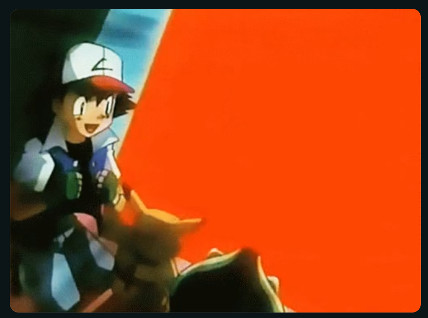 A still from Dennō Senshi Porygon, an
episode of the Pokémon TV show that caused some
children to have seizures in 1997, due to a huge area of the screen flashing red and white.
A still from Dennō Senshi Porygon, an
episode of the Pokémon TV show that caused some
children to have seizures in 1997, due to a huge area of the screen flashing red and white.
Good Contrast On Overlay Text
Just like live HTML text over images, overlayed text in video must have enough contrast to be legible. Unlike live HTML text, it is impossible to enlarge this text or change the colour of overlayed text via CSS, since it is "burned in" to the pixels of the video. An example is in the image below.
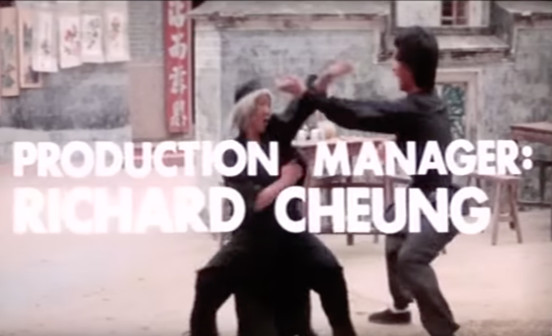 A screenshot from the opening credits from the
film "Dance of the Drunk Mantis".
A screenshot from the opening credits from the
film "Dance of the Drunk Mantis".
While you could check foreground and background colours of individual pixels using a tool like the WebAIM Contrast Checker, what I usually do is take a screenshot of the video frame with the burned in text and use a screenshot-based tool like Color Contrast Analyzer Chrome Plugin offered by IT Accessibility at NC State.
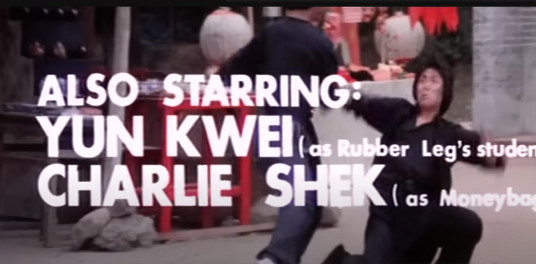 Another screenshot from the opening credits from the film "Dance of the Drunk
Mantis"..
Another screenshot from the opening credits from the film "Dance of the Drunk
Mantis"..
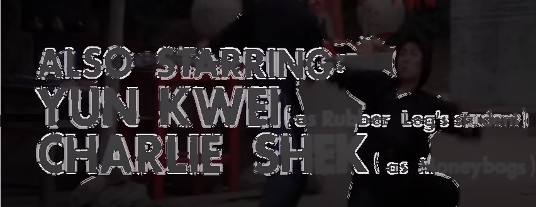 A screenshot of the WCAG 2.0 Contrast Checker plugin for Chrome testing the previous screenshot.
Just like any colour contrast issues on web pages, you can fix this by:
- Changing the text color
- Adding text outlines
- Adding text shadows
- Adding a semi-transparent background block to the text
- Darkening the background around the text with a gradient
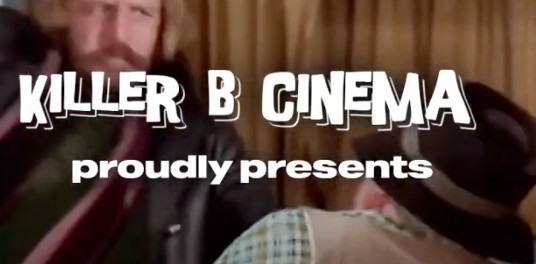 A screenshot from the trailer for the 1973 Turkish film Karate
Girl. Note that the text is easy to read due to the addition of dark text shadowing around the text
onscreen.
A screenshot from the trailer for the 1973 Turkish film Karate
Girl. Note that the text is easy to read due to the addition of dark text shadowing around the text
onscreen.
Fixing Low Background Noise
A lot of background noise can be an issue for hard-of-hearding users who are listening to multimedia content. WCAG 1.4.7: Low or No Background Audio (a AAA requirement) states that recommends that for all multimedia content, one of the following should be true:
- There is no background audio.
- The background audio can be turned off.
- The background sounds are at least 20 decibels lower (i.e. four times as quieter) than the foreground speech content, with the exception of occasional sounds that last for only one or two seconds.
While this is an AAA requirement, it would be nice to fix these types of issues when they arise. If you have a piece of multimedia that has a lot of background noise, we recommend fixing that by re-mixing the audio. If you don't have the original multi-channel master of the audio, this problem still can be fixed by separating the speech with the rest of the audio using AI using a tool like Vocal Remover. You can then take these two tracks and remixing them with the vocals boosted in volume using a tool like Audacity. If the vocals aren't clear enough, you could use a tool like Adobe Podcast's Enhance Speech tool.
If the background noise is a persistent hiss or hum, you can Audacity's Noise Reduction tool to remove that from the audio track.
Below are two videos from a VHS copy of the American dub of the Japanese cartoon "8-man" (called "eighth Man" in the U.S.). The first video has the original audio with a lot of bad audio noise from the original over-the-air recording. The second video has removed that noise by extracting the voice data using Vocal Remover, improving its fidelity using Adobe Podcast's Enhance Speech tool and remixing it with the similar music from a different source. The results can be quite impressive.
Sign Language
Watching a video with captions can be more inclusive, but does add to the cognitive load and eye fatigue of the person watching the film. For people who understand sign language, it may be more desireable to have sign language interpretation as part of the mulimedia content.
Not everyone with hearing loss understands sign language. It should be noted that there are many sign languages used throughout the world. American Sign Language, British Sign Lanaguage and Plains Sign Language are just a few examples. For these reasons, Sign Language support in pre-recorded multimedia is a WCAG AAA guideline.
That said, Deaf users may want to have sign language and captions at the same time, especially if the may have trouble reading the captions due to cogntive of vision related disabilities. For that reason, sign language support in multimedia is mandated in a lot of government communications in countries around the world.
If you do wish to have sign language in your media, you will want to keep the following in mind:
- Ensure there is good lighting for the sign language video.
- Include a high contrast border around the signer that captures a lot of the signing space (transparent background is experimental).
- Ensuring high contrast between hands and background/clothes is ideal.
- The sign language interpreters face must be large enough for the viewer to see their facial expressions.
- The standard placement for a sign language interpreter is in the bottom right of video, but this can be adjusted in order to not obscure important content in a video.
- If you are in a multilanguage environment (like Canada), you may need two interpreters (e.g. American Sign Language for English-speaking Canada and Quebec Sign Language) for French-speaking Canada.
- Remember just because two countries (like the United States and the United Kingdom) have the same spoken language, they still may have two different forms of sign language (in this case, ASL and BSL).
- Some video editors may want to freeze the sign language interpreter to emphasize what is being said.
Considerations when Broadcasting Events Live
Live online events need to be accessible as well! The following should be kept in mind if you want to ensure an accessible experience for all viewers.
- Captions should be used throughout your entire broadcast. Human made ones are better than AI ones (or you could also have a human edit the AI ones on the fly).
- When posting the video afterwards, your captions should be edited for clarity and accuracy.
- Consider using sign language interpreters for your presentation. If you do so, please keep in mind that one interpreter is not enough, since any kind of on-the-fly translation is a cognitively tiring experience for the translator.